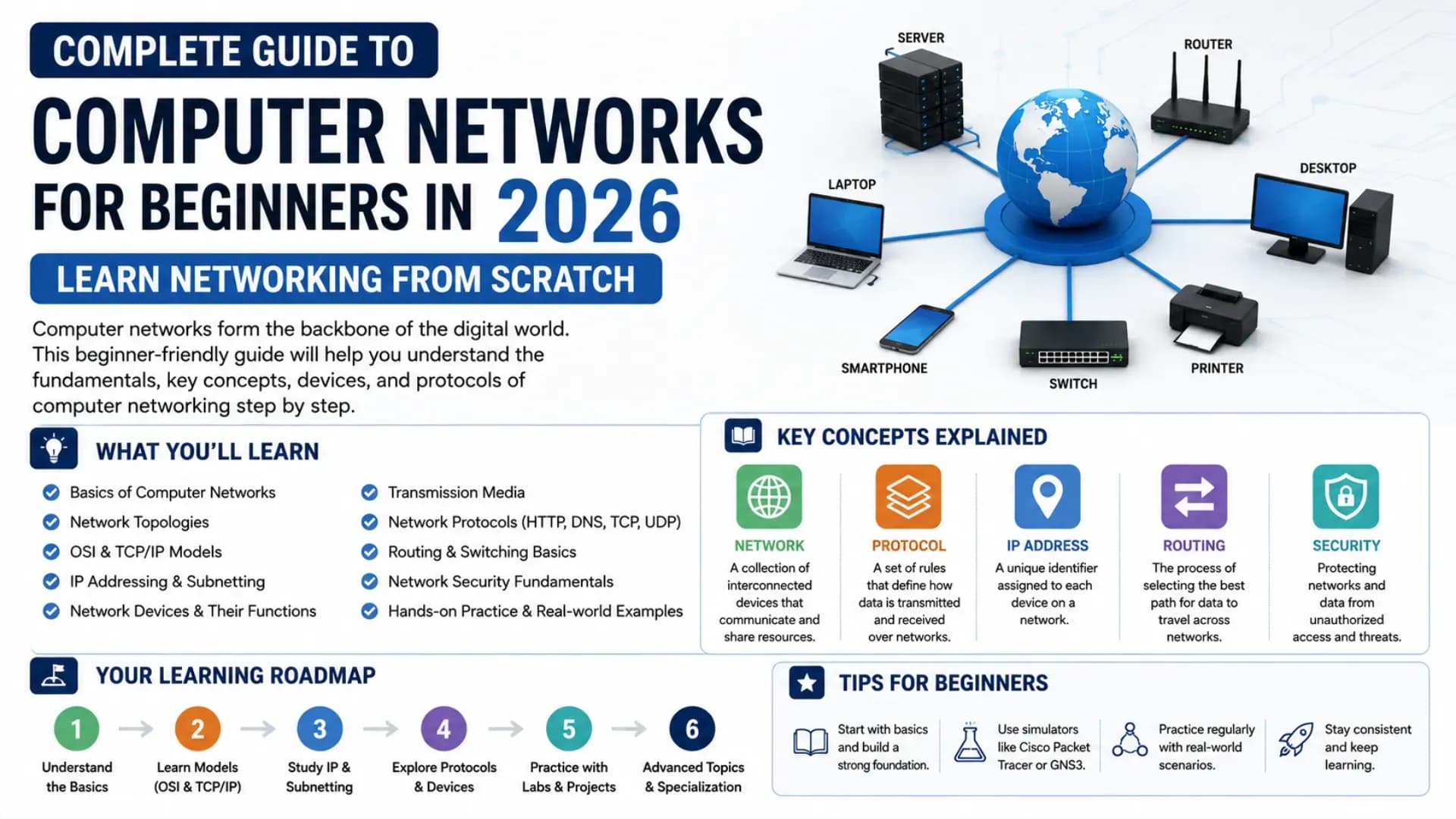
Every time you send a message, open a website, or stream a video, your data travels through a structured system of devices, protocols, and rules called a computer network. Understanding how that system works — from the physical cables to the software that governs every packet of data — is one of the most transferable skills in technology. Whether you are studying for a networking certification, a computer science degree, or simply want to understand what happens behind the browser, this complete Computer Networks tutorial takes you from first principles to practical understanding. This computer networking guide 2026 covers the OSI model, TCP/IP, IP addressing, subnetting, routing and switching, DNS, HTTP, and network security basics — everything you need to learn computer networks from scratch. Every concept includes a working example or diagram. Let's begin.
Related Article:
Top BTech Colleges in India 2026
Table of Contents
What Is a Computer Network?
A computer network is two or more devices connected together in a way that allows them to share data and resources. The devices can be computers, phones, printers, routers, or any other digital device. The connection can be wired (Ethernet cable) or wireless (Wi-Fi, Bluetooth). The defining characteristic is communication — a network exists to move data between devices.
The key components of every network:
- End devices (hosts): Computers, phones, servers — the sources and destinations of data
- Network devices: Routers, switches, hubs, access points — devices that move data between hosts
- Transmission media: Cables (copper, fibre optic) or wireless signals (radio waves) — the physical medium data travels through
- Protocols: Rules that govern how data is formatted, transmitted, and received — the "language" of the network
- Network software: Operating system network stacks, network management tools, and applications that use the network
# A simple network topology:
#
#  [Computer A] ---+                    +--- [Computer C]
#                  |                    |
#  [Computer B] ---+--- [Switch] ---[Router] --- [Internet]
#                  |                    |
#  [Printer]   ---+                    +--- [Server]
#
# Switch: connects devices within the same network (LAN)
# Router: connects different networks (your LAN to the Internet)
Every piece of data sent across a network is broken into small chunks called packets. Each packet travels independently through the network — potentially via different routes — and is reassembled at the destination. This packet-switching model (used by the Internet) is more efficient and resilient than circuit switching (used by traditional phone calls), which reserves a dedicated path for the entire duration of a connection.
Types of Networks — LAN, WAN, MAN and More
Networks are classified by their geographic scope and the technologies they use. Understanding network types is foundational to this networking for beginners guide because each type has different speed, latency, security, and management characteristics.
# Network Types by Geographic Scope:
#
# PAN (Personal Area Network)   → 1–10 metres
#   Examples: Bluetooth headset ↔ phone, smartwatch ↔ phone
#
# LAN (Local Area Network)      → room / building / campus
#   Examples: home WiFi, office network, university campus network
#   Technologies: Ethernet (IEEE 802.3), WiFi (IEEE 802.11)
#   Speed: 100 Mbps – 10 Gbps (wired); up to 9.6 Gbps (WiFi 6)
#
# MAN (Metropolitan Area Network) → city / metro area
#   Examples: city broadband infrastructure, ISP city backbone
#   Connects multiple LANs across a city
#
# WAN (Wide Area Network)       → countries / continents
#   Example: The Internet (the world's largest WAN)
#   Technologies: MPLS, SD-WAN, leased lines, satellite
#   Speed: varies (1 Mbps – 400 Gbps on backbone links)
#
# VPN (Virtual Private Network) → logical overlay on public network
#   Creates encrypted private tunnel through the public Internet
#   Used by corporations for remote access; users for privacy
Network Topologies
The topology describes how devices are arranged and connected. The most common topologies in this networking basics foundation are: Bus (all devices share a single cable — obsolete but historically important), Star (all devices connect to a central switch — the dominant topology in modern LANs), Ring (devices form a loop — used in some industrial networks and older token ring LANs), and Mesh (every device connects to every other — used in WANs for redundancy and in wireless mesh networks).
The OSI Model — 7 Layers Explained
The OSI model (Open Systems Interconnection) is a conceptual framework that divides network communication into 7 distinct layers — each responsible for a specific function. It was developed by ISO to standardise how different vendor equipment and software can communicate. Understanding the OSI model is essential to understanding any networking concept — protocols, devices, and troubleshooting all map to specific layers.
# OSI Model — 7 Layers (memorise: "Please Do Not Throw Sausage Pizza Away")
#
#  Layer 7 — Application   → HTTP, FTP, SMTP, DNS, SSH
#  Layer 6 — Presentation  → Encryption, compression, encoding (SSL/TLS)
#  Layer 5 — Session       → Session setup/teardown (NetBIOS, RPC)
#  Layer 4 — Transport     → TCP, UDP (reliable/unreliable delivery)
#  Layer 3 — Network       → IP addressing, routing (IP, ICMP, ARP)
#  Layer 2 — Data Link     → MAC addressing, frames (Ethernet, WiFi)
#  Layer 1 — Physical      → bits on a wire, voltage levels, cables
#
# Data travels DOWN the layers on the sender side (encapsulation)
# Data travels UP the layers on the receiver side (de-encapsulation)
What Each Layer Does — with Real Examples
# You type "https://google.com" and press Enter. Here's what happens:
#
# Layer 7 (Application):
#   Your browser creates an HTTP GET request for google.com
#   Data: "GET / HTTP/1.1\r\nHost: google.com\r\n..."
#
# Layer 6 (Presentation):
#   TLS encrypts the request (HTTPS = HTTP + TLS)
#   Data is now an encrypted blob
#
# Layer 5 (Session):
#   TLS handshake establishes the session (who you are, what encryption)
#
# Layer 4 (Transport):
#   TCP wraps the data in a SEGMENT
#   Adds: source port (e.g. 52341), destination port (443 for HTTPS)
#   Adds: sequence number for ordering; checksum for error detection
#
# Layer 3 (Network):
#   IP wraps the TCP segment in a PACKET
#   Adds: source IP (your IP: 192.168.1.5)
#   Adds: destination IP (Google's IP: 142.250.195.46)
#
# Layer 2 (Data Link):
#   Ethernet wraps the IP packet in a FRAME
#   Adds: source MAC (your NIC's address)
#   Adds: destination MAC (your router's MAC — the next hop)
#
# Layer 1 (Physical):
#   The frame becomes electrical signals / radio waves / light pulses
#   Travels through the cable/WiFi to your router
#
# At each hop (router), Layer 3 is read to determine next hop.
# At the destination (Google server), layers are unwrapped in reverse.
Key OSI insight: Each layer only communicates with the layer directly above and below it. Layer 4 (TCP) doesn't care what the application is — it just provides reliable delivery. Layer 3 (IP) doesn't care what transport protocol is used — it just routes packets. This separation of concerns is what makes the Internet modular and scalable.
Also Read:
Top MTech Colleges in India 2026
TCP/IP Protocol Suite
The TCP/IP protocol suite is the actual protocol stack that runs the Internet — a simplified 4-layer model that maps to the OSI model's 7 layers. TCP (Transmission Control Protocol) and IP (Internet Protocol) are the two most important protocols, but the suite includes dozens of others.
# TCP/IP 4-Layer Model vs OSI 7-Layer Model:
#
# TCP/IP             OSI Equivalent        Key Protocols
# ---------------------------------------------------------
# Application   →   Layers 5, 6, 7    →   HTTP, HTTPS, DNS, FTP, SSH, SMTP
# Transport     →   Layer 4           →   TCP, UDP
# Internet      →   Layer 3           →   IP (IPv4/IPv6), ICMP, ARP
# Network Access →  Layers 1, 2       →   Ethernet, WiFi, Fibre
TCP — Reliable, Connection-Oriented
# TCP Three-Way Handshake (connection setup):
#
#  Client                          Server
#    |  ──── SYN (seq=100) ───────→  |    "I want to connect, my seq starts at 100"
#    |  ←─── SYN-ACK (seq=200,  ──  |    "OK. My seq starts at 200; I got your 100"
#    |        ack=101)              |
#    |  ──── ACK (ack=201) ───────→  |    "Got it. Connection established."
#
# After handshake: data flows bidirectionally
# TCP guarantees: ordered delivery, retransmission of lost packets,
#                 flow control (don't overwhelm receiver),
#                 congestion control (don't overwhelm the network)
#
# Use TCP for: web browsing, email, file transfer, SSH
#   (anything where every byte must arrive correctly)
UDP — Fast, Connectionless
# UDP: fire-and-forget — no handshake, no guarantee of delivery
#
#  Client ──── datagram ──────────────────────────────→  Server
#         (maybe arrives, maybe doesn't, maybe out of order)
#
# Advantages of UDP: lower latency, lower overhead
# Use UDP for: live video streaming, online gaming, DNS queries,
#              VoIP — situations where speed > perfect reliability
#
# Common ports (important to memorise):
# Port 80   → HTTP       Port 443  → HTTPS      Port 22  → SSH
# Port 21   → FTP        Port 25   → SMTP       Port 53  → DNS (UDP+TCP)
# Port 110  → POP3       Port 143  → IMAP       Port 3306 → MySQL
IP Addressing and Subnetting
IP addressing is how devices on a network are uniquely identified. Every device that communicates on the Internet (or any IP network) has an IP address. Understanding IP addresses — and how networks are divided into subnets — is the most practically important skill in networking basics.
# IPv4 Address Structure:
# 32-bit number, written as 4 octets (8 bits each) in decimal
#
# Example: 192.168.10.25
#          192   .  168   .   10   .   25
#        11000000  10101000  00001010  00011001   (binary)
#
# Range of each octet: 0 – 255
# Total IPv4 addresses: 2^32 = ~4.3 billion
#
# Private IP Ranges (not routable on public Internet):
#   10.0.0.0     – 10.255.255.255   (10.x.x.x)     Class A private
#   172.16.0.0   – 172.31.255.255   (172.16–31.x.x) Class B private
#   192.168.0.0  – 192.168.255.255  (192.168.x.x)   Class C private
#
# Your home WiFi devices use 192.168.x.x addresses.
# Your router uses NAT to translate these to your public IP.
# Subnet Masks and CIDR Notation:
# A subnet mask tells you which part of the IP is the NETWORK
# and which part is the HOST (individual device)
#
# IP Address: 192.168.1.100
# Subnet Mask: 255.255.255.0 ← in binary: 11111111.11111111.11111111.00000000
# CIDR: 192.168.1.100/24 ← "/24" = 24 ones in the subnet mask
#
# Network address: 192.168.1.0 (host bits all 0)
# Broadcast address: 192.168.1.255 (host bits all 1)
# Usable hosts: 192.168.1.1 – 192.168.1.254 (254 hosts)
#
# Common CIDR blocks:
# /8 → 16,777,214 hosts (255.0.0.0)
# /16 → 65,534 hosts (255.255.0.0)
# /24 → 254 hosts (255.255.255.0) ← most common for small LANs
# /30 → 2 hosts (255.255.255.252) ← used for point-to-point links
#
# Formula: usable hosts = 2^(host bits) - 2
# (subtract 2 for network address and broadcast address)# Subnetting Example — Divide 192.168.1.0/24 into 4 equal subnets:
#
# We need 4 subnets → borrow 2 bits from host portion (2^2 = 4)
# New prefix: /24 + 2 = /26 → 255.255.255.192
#
# Subnet 1: 192.168.1.0/26 → Hosts: .1 – .62 (62 hosts)
# Subnet 2: 192.168.1.64/26 → Hosts: .65 – .126 (62 hosts)
# Subnet 3: 192.168.1.128/26 → Hosts: .129 – .190 (62 hosts)
# Subnet 4: 192.168.1.192/26 → Hosts: .193 – .254 (62 hosts)
#
# Each subnet has: 64 addresses - 2 = 62 usable host addressesIPv6 — The Future of IP Addressing
# IPv6: 128-bit addresses — written as 8 groups of 4 hex digits
#
# Example: 2001:0db8:85a3:0000:0000:8a2e:0370:7334
# Shortened: 2001:db8:85a3::8a2e:370:7334  (leading zeros + :: for consecutive zeros)
#
# Total IPv6 addresses: 2^128 = 340 undecillion
# (enough for every atom on Earth to have its own IP address)
#
# Why IPv6 matters: IPv4 exhaustion (all 4.3B public IPs are allocated)
# IPv6 adoption is growing — major ISPs and cloud providers are dual-stack
# (supporting both IPv4 and IPv6 simultaneously)
Routing and Switching
Routing and switching are the two core forwarding mechanisms in networking. Switches operate at Layer 2 (Data Link) using MAC addresses; routers operate at Layer 3 (Network) using IP addresses. Understanding the difference is fundamental to learn computer networks.
# SWITCH — Layer 2 device — connects devices WITHIN a network (LAN)
#
# Builds a MAC address table by learning source MAC addresses:
#
# Port  MAC Address
# ----  -----------------
#  1    AA:BB:CC:DD:EE:01  ← Computer A is connected to port 1
#  2    AA:BB:CC:DD:EE:02  ← Computer B is connected to port 2
#  3    AA:BB:CC:DD:EE:03  ← Printer is connected to port 3
#
# When Computer A sends a frame to Computer B:
#   Switch looks up dest MAC AA:BB:CC:DD:EE:02 → forwards only to Port 2
#   (not broadcast to all ports like a hub would)
#
# If destination MAC is unknown: switch FLOODS the frame to all ports
# (then learns the reply's source MAC to update its table)
# ROUTER — Layer 3 device — connects DIFFERENT networks
#
# Routing table example:
#
# Destination Network Next Hop Interface
# ------------------- --------------- ---------
# 192.168.1.0/24 directly conn. eth0 ← local LAN
# 10.0.0.0/8 192.168.1.254 eth1 ← corporate WAN
# 0.0.0.0/0 203.0.113.1 eth2 ← default route (Internet)
#
# Longest Prefix Match rule:
# For packet to 192.168.1.50: matches 192.168.1.0/24 (more specific) → eth0
# For packet to 8.8.8.8: only matches 0.0.0.0/0 (default) → eth2 → Internet
#
# Routing protocols populate the routing table automatically:
# OSPF: link-state, fast convergence — used inside enterprise networks
# BGP: path-vector — used between ISPs and the global Internet
# RIP: distance-vector, older — max 15 hops, slow convergence# ARP — Address Resolution Protocol (Layer 2/3 bridge)
# Resolves IP addresses to MAC addresses on a local network
#
# Scenario: Computer A (192.168.1.10) wants to send to 192.168.1.20
#
# Step 1: A broadcasts ARP Request:
# "Who has 192.168.1.20? Tell 192.168.1.10"
# (sent to FF:FF:FF:FF:FF:FF — broadcast MAC)
#
# Step 2: B (192.168.1.20) replies with ARP Reply (unicast):
# "192.168.1.20 is at AA:BB:CC:DD:EE:20"
#
# Step 3: A caches this mapping in its ARP table
# Now A can send Ethernet frames directly to B's MAC addressDNS, HTTP and Application Layer Protocols
DNS — The Internet's Address Book
DNS (Domain Name System) translates human-readable domain names (google.com) into IP addresses (142.250.195.46). Without DNS, you would need to memorise IP addresses for every website you visit.
# DNS Resolution — what happens when you type "google.com":
#
# 1. Browser checks its own DNS cache — is google.com cached?
#    If yes → use cached IP. If no → proceed.
#
# 2. OS checks /etc/hosts file (local overrides)
#
# 3. OS sends query to Recursive Resolver (your ISP's or 8.8.8.8)
#
# 4. Recursive Resolver asks Root Nameserver: "Who handles .com?"
#    Root: "Ask the .com TLD nameserver at 192.5.6.30"
#
# 5. Recursive Resolver asks TLD nameserver: "Who handles google.com?"
#    TLD: "Ask Google's nameserver at ns1.google.com"
#
# 6. Recursive Resolver asks Google's nameserver:
#    "What is the A record for google.com?"
#    Google NS: "142.250.195.46" (A record)
#
# 7. Resolver returns IP to client; client caches it (TTL: e.g. 300s)
#
# Common DNS Record Types:
# A     → maps domain to IPv4 address
# AAAA  → maps domain to IPv6 address
# CNAME → alias (www.google.com → google.com)
# MX    → mail exchange server for email delivery
# NS    → nameserver for the domain
# TXT   → arbitrary text (used for SPF, DKIM, verification)
HTTP and HTTPS
# HTTP Request/Response cycle:
#
# Client sends HTTP Request:
GET /index.html HTTP/1.1
Host: example.com
User-Agent: Mozilla/5.0
Accept: text/html
Connection: keep-alive
#
# Server responds with HTTP Response:
HTTP/1.1 200 OK
Content-Type: text/html; charset=UTF-8
Content-Length: 1234
#
# [HTML body follows]
#
# Common HTTP Status Codes:
# 200 OK              → Success
# 301 Moved Permanently → Redirect (permanent)
# 302 Found           → Redirect (temporary)
# 400 Bad Request     → Client error (malformed request)
# 401 Unauthorized    → Authentication required
# 403 Forbidden       → Access denied
# 404 Not Found       → Resource doesn't exist
# 500 Internal Server Error → Server-side failure
#
# HTTPS = HTTP + TLS encryption
# TLS (Transport Layer Security) encrypts the connection so
# only the client and server can read the data.
# Look for the padlock icon in the browser and "https://" prefix.
CHECK OUT:
Top Colleges in Ranchi 2026
Network Security Basics
Network security basics is not a separate topic from networking — security is embedded in every layer of the network stack. Understanding common threats, defences, and security protocols is essential for anyone who wants to learn computer networks practically and professionally in 2026.
# Common Network Attacks and What They Target:
#
# Man-in-the-Middle (MITM)        → Layer 2/3/7
#   Attacker intercepts traffic between two parties
#   Attack: ARP spoofing (fake MAC-to-IP mapping)
#   Defence: HTTPS/TLS, ARP inspection, VPNs
#
# DoS / DDoS (Denial of Service)  → Layer 3/4
#   Flood the target with traffic until it becomes unavailable
#   Attack: SYN flood (exhaust server connection table)
#   Defence: Rate limiting, firewalls, CDNs, DDoS scrubbing
#
# DNS Spoofing / Cache Poisoning   → Layer 7 (DNS)
#   Insert fake DNS records to redirect users to malicious sites
#   Defence: DNSSEC (DNS Security Extensions)
#
# Packet Sniffing                  → Layer 1/2
#   Capture unencrypted traffic on the network
#   Tools: Wireshark (legitimate network analysis)
#   Defence: Encryption (TLS), VPNs, switched networks
#
# Port Scanning                    → Layer 4
#   Discover open ports on a target to find attack surfaces
#   Tool: nmap (legitimate security auditing)
#   Defence: firewalls, close unnecessary ports, IDS/IPS
# Key Security Mechanisms:
#
# FIREWALL: filters traffic based on rules
# Stateless: matches individual packets against rules
# Stateful: tracks connection state (preferred)
# Example rule: ALLOW TCP from ANY to 80,443; DENY ALL others
#
# VPN (Virtual Private Network):
# Encrypts all traffic between client and VPN server
# Protocols: OpenVPN, WireGuard, IPsec, L2TP
# Use: secure remote access, privacy on public WiFi
#
# TLS/SSL Handshake (simplified):
# Client → Server: "Hello! I support TLS 1.3, here are my cipher suites"
# Server → Client: "Hello! Use AES-256-GCM. Here is my certificate."
# Client verifies: Certificate signed by trusted CA? IP matches? Expiry?
# Both sides: Derive shared session key (asymmetric → symmetric)
# Data flows: Encrypted with shared symmetric key (fast)
#
# Zero Trust Security model (2026 standard):
# "Never trust, always verify" — every access request authenticated,
# even from inside the corporate network
# Components: identity verification, device health, least-privilege accessNext Steps — Building Your Networking Knowledge in 2026
This computer networking guide 2026 has given you the foundation — OSI model, TCP/IP, IP addressing, routing and switching, DNS, HTTP, and network security basics. Here is the progression from beginner to professional:
- Hands-on practice — Packet Tracer and Wireshark: Cisco Packet Tracer (free with Netacad account) lets you build virtual networks and observe how packets move. Wireshark (free, open source) captures real traffic on your machine — the best way to see the TCP handshake, DNS resolution, and HTTP headers in action
- Certifications: CompTIA Network+ (vendor-neutral fundamentals — ideal first cert), Cisco CCNA (more technical, industry-standard for networking roles), AWS/Azure networking certifications (cloud-specific networking for cloud engineers)
- Cloud networking: In 2026, most enterprise networking is happening in or through cloud environments — AWS VPC, Azure Virtual Network, GCP VPC. Understanding how traditional networking concepts (subnets, routing tables, security groups = firewalls) apply in cloud is the highest-demand networking skill this computer networking guide 2026 points toward
- SDN (Software-Defined Networking): The decoupling of the control plane from the data plane — the architecture behind modern cloud networks and network automation. Technologies: OpenFlow, ONOS, OpenDaylight
- Build something: Set up a home lab with a Raspberry Pi as a router, configure VLANs, run your own DNS server (Pi-hole), implement a VPN. The networking for beginners to professional transition happens through building, breaking, and understanding why things broke
Best resources for continuing your journey: "Computer Networking: A Top-Down Approach" by Kurose and Ross (the most recommended university textbook), Professor Messer's Network+ course (free on YouTube), Cisco Netacad (free CCNA content), and the IETF RFCs themselves — the original technical specifications for every protocol covered in this Computer Networks tutorial. Bookmark this Computer Networks tutorial for reference as you practise.
Explore More
Conclusion
You now have a working foundation in computer networks — from the physical signals at Layer 1 to the encrypted HTTPS requests at Layer 7. The OSI model gives you a mental map for diagnosing any networking problem. The TCP/IP protocol suite -- and understanding the TCP/IP protocol deeply -- tells you how the Internet actually works. IP addressing and subnetting give you the mathematical toolkit for designing and understanding networks. Routing and switching -- and the specific mechanisms behind routing and switching decisions -- explain how data finds its way across any network. DNS and HTTP connect the abstract protocol stack to the web you use every day. And network security basics remind you that every protocol has a threat model.
The transition from understanding to proficiency in networking for beginners happens through doing — capture real packets in Wireshark, build a network in Packet Tracer, ping a server and trace the route it takes. The concepts in this computer networking guide 2026 are more useful the more concrete you make them. Open a terminal, type traceroute google.com, and watch the networking basics you just learned unfold in real time.