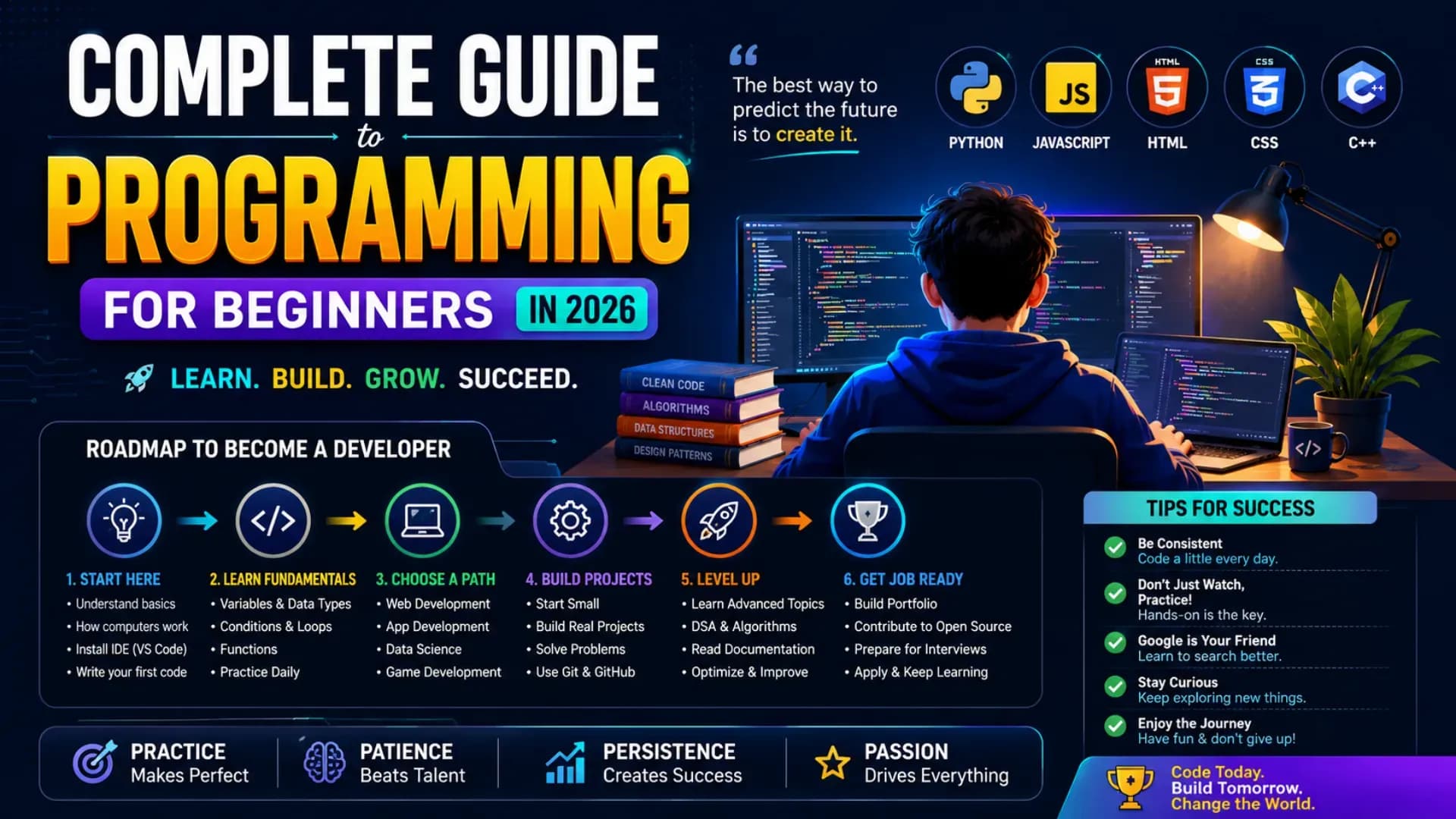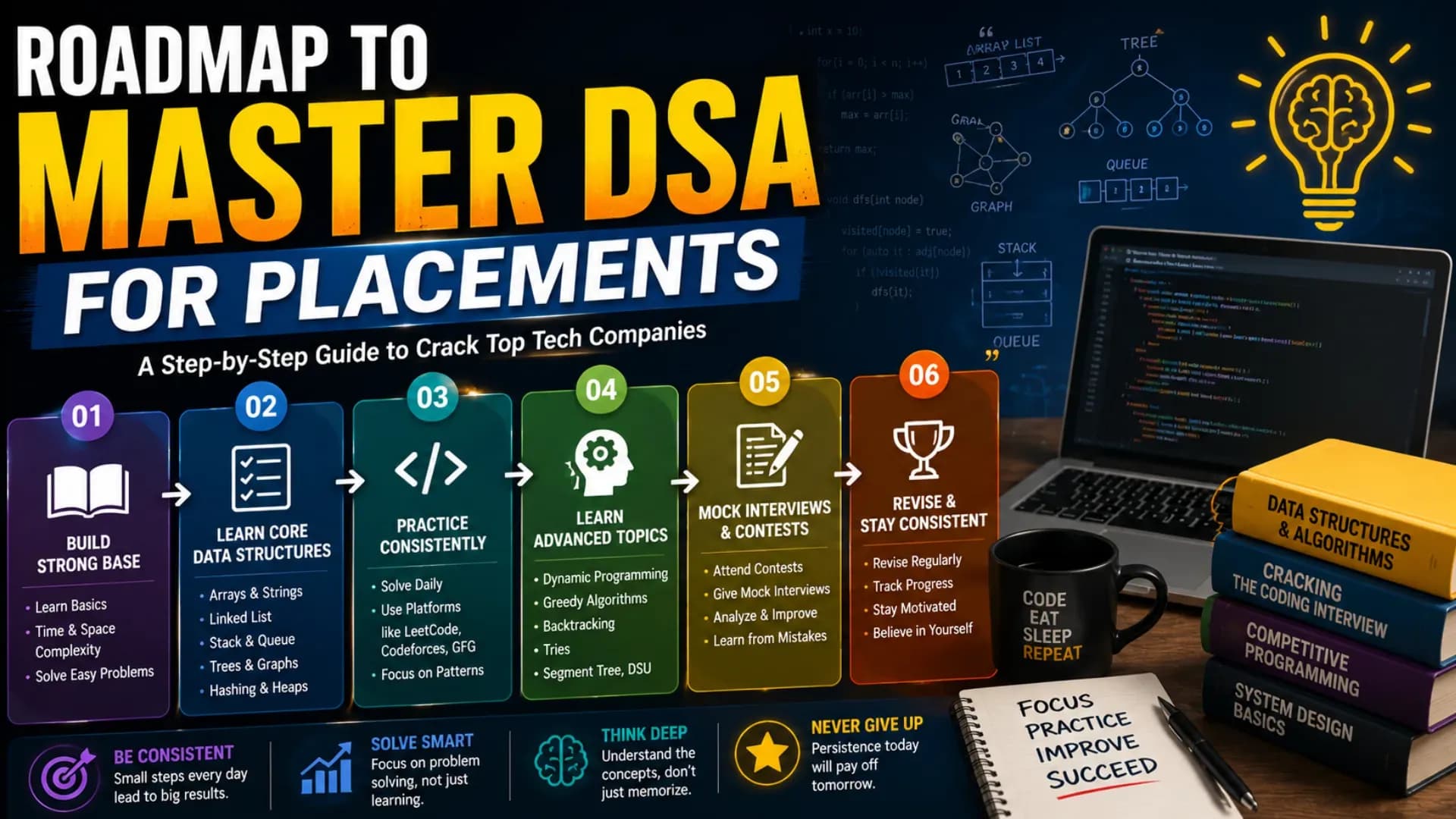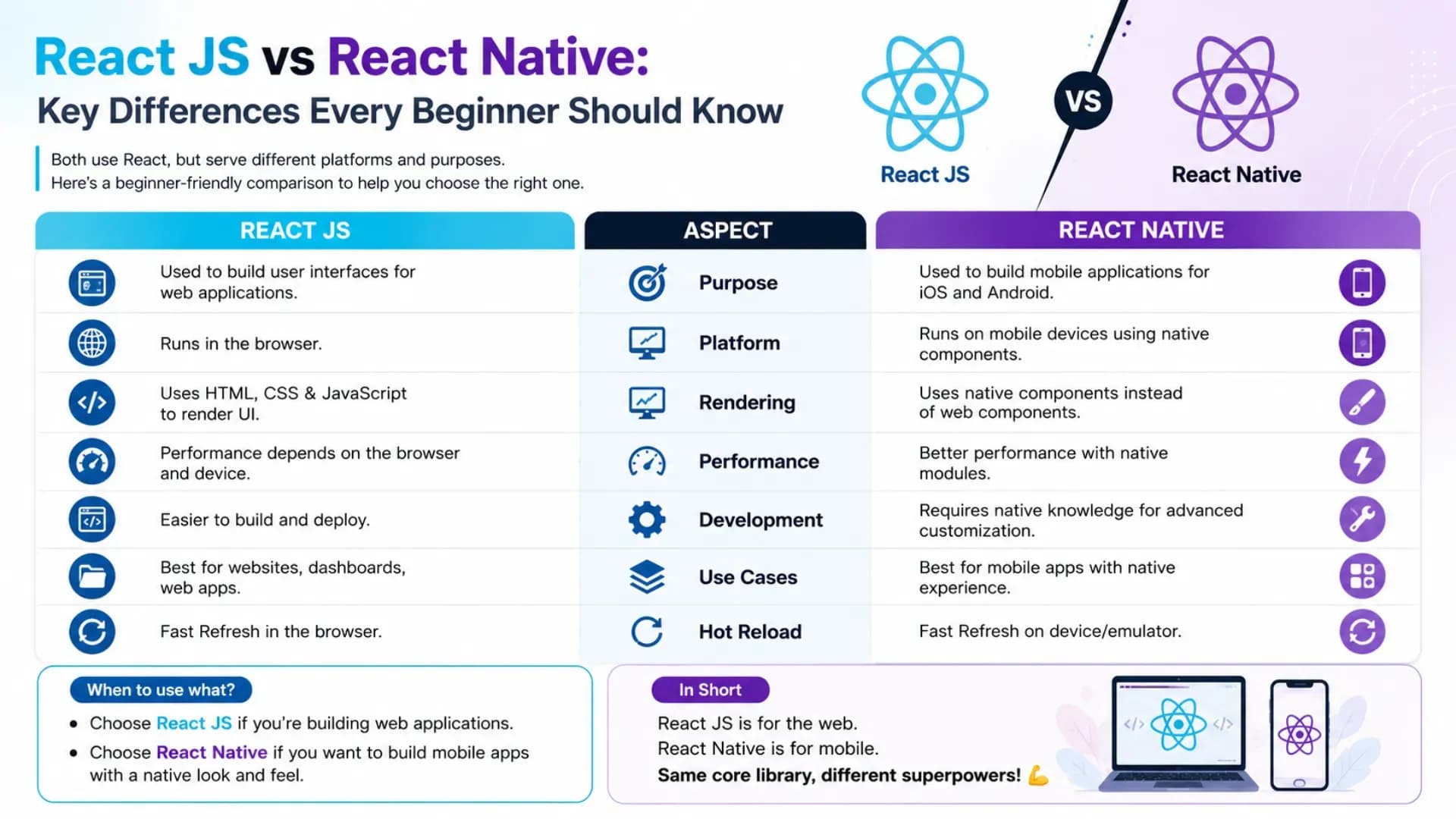
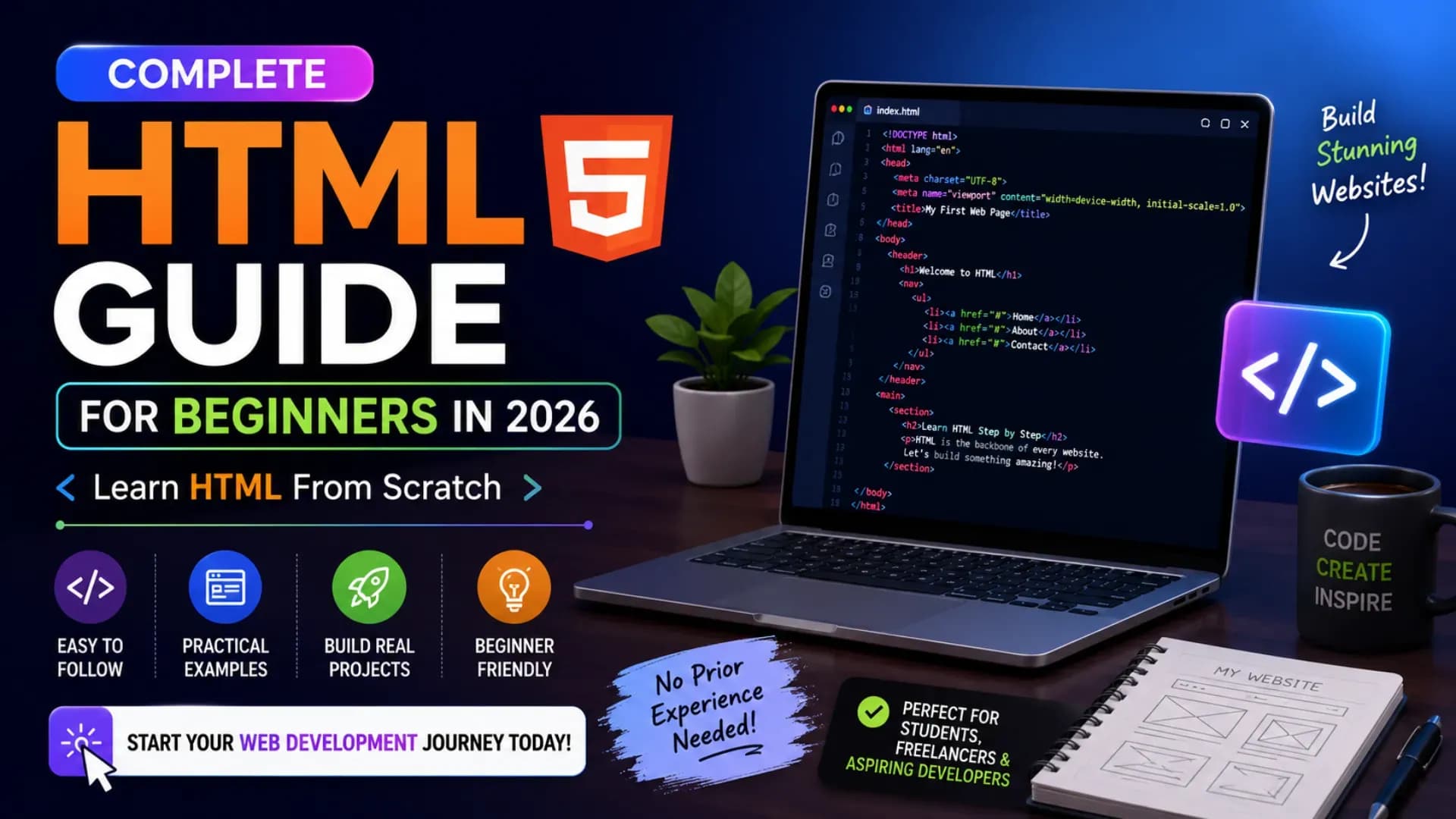
HTML is the language of the web — and to learn HTML from scratch, you first need to understand what HTML actually is — every page you have ever visited, every article you have ever read online, every button you have ever clicked is built on HTML at its foundation. The goal of this guide is to help you learn HTML from scratch, and unlike most programming languages, HTML basics are genuinely accessible: the concepts are visual, the feedback is immediate, and the path from "I know nothing" to "I built a webpage" is measured in hours rather than months. This complete HTML guide for beginners — the most thorough HTML guide for beginners you will find for 2026 — takes you from absolute zero — what HTML is, why it matters, and how a browser reads it — through every concept you need to build real, well-structured web pages: document structure, text and image elements, links and navigation, semantic HTML, HTML forms, tables, and the modern HTML5 features that distinguish professional web pages from basic ones. Every concept comes with working HTML examples — and these HTML examples are designed to be copy-able, modifiable, and immediately testable in a browser — copy them, modify them, break them, and rebuild them. These HTML examples cover every major element category. That is how HTML is learned: by doing. By the end of this guide, you will have the foundational skills to learn HTML from scratch and build complete web pages from scratch in 2026. Let's begin.
Related Article:
Top BTech Colleges in India 2026
Table of Contents
- What Is HTML and How Does It Work?
- HTML Document Structure — The Skeleton Every Page Needs
- Text Elements — Headings, Paragraphs, Bold, Italic
- Links and Images — Connecting the Web
- Lists — Ordered, Unordered, and Nested
- Semantic HTML — Writing Code That Means Something
- HTML Tables — Displaying Data Clearly
- HTML Forms — Collecting User Input
- HTML5 Features — Modern Web Development Essentials
- Next Steps After Learning HTML
What Is HTML and How Does It Work?
HTML stands for HyperText Markup Language. It is not a programming language in the traditional sense — it does not perform calculations, make decisions, or process data. HTML is a markup language: it uses tags to annotate (mark up) content, telling the browser what each piece of content is. HTML tags are the atoms of the web — every element you see on any webpage is rendered through them. and how to structure it. When a browser receives an HTML file, it reads the tags and renders the content accordingly — making a <h1> tag into a large heading, an <img> tag into a displayed image, and an <a> tag into a clickable link.
The "HyperText" part refers to the ability to link between documents — the defining innovation of the web. "Markup" refers to the system of tags. Together, HTML defines the structure and content of every web page. CSS styles it. JavaScript makes it interactive. But HTML is the foundation.
Understanding HTML tags — The Core Concept
HTML tags are keywords enclosed in angle brackets. Most come in pairs — an opening tag and a closing tag (with a forward slash) that wrap the content:
<!-- Basic tag structure -->
<tagname>Content goes here</tagname>

<!-- Real examples -->
<h1>This is a heading</h1>
<p>This is a paragraph of text.</p>
<strong>This text will be bold.</strong>

<!-- Some tags are self-closing (void elements) -->
<br>          <!-- line break -->
<img src="photo.jpg" alt="description">   <!-- image -->
<hr>          <!-- horizontal rule -->
Understanding Attributes
Tags can have attributes — extra information that modifies the element's behaviour. Attributes always go inside the opening tag as name-value pairs:
<!-- attribute syntax: name="value" -->
<a href="https://example.com">Click here</a>
<img src="logo.png" alt="Company Logo" width="200">
<input type="text" placeholder="Enter your name" required>

<!-- Multiple attributes on one tag -->
<a
  href="https://example.com"
  target="_blank"
  title="Opens in new tab"
>Open Example</a>
HTML Document Structure — The Skeleton Every Page Needs
Every valid HTML page — from a single-paragraph personal blog to a complex e-commerce site — begins with the same foundational structure. This structure tells browsers and search engines what they are dealing with and ensures your content is parsed correctly. As part of learning HTML from scratch, memorising this template is your first concrete step:
<!-- Complete HTML page structure -->
<!DOCTYPE html>
<html lang="en">

  <head>
    <meta charset="UTF-8">
    <meta name="viewport" content="width=device-width, initial-scale=1.0">
    <title>My First Web Page</title>
    <link rel="stylesheet" href="styles.css">
  </head>

  <body>
    <!-- All visible content goes here -->
    <h1>Hello, World!</h1>
    <p>This is my first web page.</p>
  </body>

</html>
Breaking Down Each Part
<!DOCTYPE html>— Declaration that tells the browser this is HTML5. Always the very first line. Not a tag; it is a document type declaration<html lang="en">— Root element that wraps everything. Thelangattribute helps screen readers and search engines understand the content language<head>— Contains metadata about the page — information that is not displayed on the page itself but is critical for browsers, search engines, and social media<meta charset="UTF-8">— Character encoding declaration. UTF-8 supports virtually all characters and symbols across all languages. Always include this<meta name="viewport">— Ensures correct rendering on mobile devices. Without this, your page will appear zoomed out on phones<title>— The page title shown in browser tabs and search engine results. Every page must have one<body>— Contains all visible page content — everything your visitors actually see and interact with
Text Elements — Headings, Paragraphs, Bold, Italic
Text is the foundation of most web content. HTML provides a rich set of elements for structuring and emphasising text — and understanding the difference between presentational and semantic text elements is one of the key distinctions in this beginner HTML guide. A good beginner HTML guide always explains this distinction.
<!-- Headings: h1 (most important) to h6 (least important) -->
<h1>Page Title — Use Only Once Per Page</h1>
<h2>Major Section Heading</h2>
<h3>Sub-section Heading</h3>
<h4>Sub-sub-section</h4>

<!-- Paragraphs -->
<p>
  This is a paragraph. The browser automatically adds
  space before and after paragraphs. Multiple spaces and
  line breaks in HTML are collapsed into a single space.
</p>

<!-- Inline text formatting -->
<p>
  <strong>Bold text</strong> for important content.
  <em>Italic text</em> for emphasis.
  <mark>Highlighted text</mark> like a yellow marker.
  <code>Inline code</code> for technical terms.
  <del>Deleted text</del> with strikethrough.
  Text with <sub>subscript</sub> and <sup>superscript</sup>.
</p>

<!-- Blockquote -->
<blockquote cite="https://source.com">
  <p>A longer quoted passage from another source,
  styled distinctively by the browser.</p>
</blockquote>

<!-- Preformatted text (preserves spacing and line breaks) -->
<pre>
  This text
      preserves    spacing
  and line breaks exactly.
</pre>
Semantic vs Presentational: Use <strong> for important text (bold) and <em> for emphasis (italic) — not <b> and <i>. The semantic elements convey meaning to screen readers and search engines; the presentational ones only affect appearance. This distinction matters in professional web development.
Also Read:
Top MTech Colleges in India 2026
Links and Images — Connecting the Web
Links (<a>) and images (<img>) are among the most used elements in any web page. The anchor tag is what makes the web a web — the interconnected network of pages navigable through hyperlinks. Images make content visual and engaging. Both require careful attention to their key attributes.
<!-- Links (Anchor Tags) -->

<!-- External link -->
<a href="https://google.com" target="_blank" rel="noopener noreferrer">
  Visit Google
</a>

<!-- Internal link (same website) -->
<a href="/about.html">About Us</a>

<!-- Anchor link (jump to section on same page) -->
<a href="#contact">Jump to Contact Section</a>
<!-- Target element must have matching id -->
<section id="contact">...</section>

<!-- Email and phone links -->
<a href="mailto:[email protected]">Email Us</a>
<a href="tel:+919876543210">Call Us</a>
<!-- Images -->
<!-- Basic image (alt is MANDATORY for accessibility) -->
<img
src="photo.jpg"
alt="Smiling student holding a laptop"
width="600"
height="400"
>
<!-- Responsive image (CSS handles sizing) -->
<img
src="hero.jpg"
alt="Hero image description"
style="max-width: 100%; height: auto;"
>
<!-- Image wrapped in a link -->
<a href="https://example.com">
<img src="logo.png" alt="Example.com logo">
</a>
<!-- Figure with caption -->
<figure>
<img src="chart.png" alt="Bar chart showing Q3 revenue">
<figcaption>Figure 1: Q3 Revenue by Region</figcaption>
</figure>Lists — Ordered, Unordered, and Nested
Lists are among the most used structures in any web document — from navigation menus to step-by-step instructions to ingredient lists. HTML provides three types: unordered (bullet points), ordered (numbered), and definition lists (term/description pairs).
<!-- Unordered list (bullet points) -->
<ul>
  <li>HTML — Structure</li>
  <li>CSS — Styling</li>
  <li>JavaScript — Interactivity</li>
</ul>

<!-- Ordered list (numbered steps) -->
<ol>
  <li>Open a text editor</li>
  <li>Write your HTML</li>
  <li>Save as index.html</li>
  <li>Open in browser</li>
</ol>

<!-- Nested lists (list inside a list item) -->
<ul>
  <li>
    Front-end Development
    <ul>
      <li>HTML</li>
      <li>CSS</li>
      <li>JavaScript</li>
    </ul>
  </li>
  <li>
    Back-end Development
    <ul>
      <li>Python / Node.js</li>
      <li>Databases</li>
    </ul>
  </li>
</ul>

<!-- Description list (term / definition pairs) -->
<dl>
  <dt>HTML</dt>
  <dd>HyperText Markup Language — defines page structure</dd>
  <dt>CSS</dt>
  <dd>Cascading Style Sheets — controls visual presentation</dd>
</dl>
Semantic HTML — Writing Code That Means Something
Semantic HTML — writing HTML that conveys meaning rather than just structure — is one of the most important concepts. Understanding semantic HTML separates beginner developers from professional ones in this HTML tutorial 2026 — and the one most often skipped by beginners who learned HTML from outdated resources. Before HTML5, developers used <div> elements for everything: navigation, headers, sidebars, footers — all were generic <div> elements. This produced pages that looked correct visually but had no structure that a screen reader, search engine, or accessibility tool could understand. Semantic HTML changes this by using elements that convey the meaning of the content they contain.
<!-- NON-semantic layout (pre-HTML5 approach) -->
<div class="header"> ... </div>
<div class="nav"> ... </div>
<div class="content"> ... </div>
<div class="footer"> ... </div>
<!-- SEMANTIC layout (correct modern approach) -->
<header>
<h1>Site Name</h1>
<nav>
<ul>
<li><a href="/">Home</a></li>
<li><a href="/about">About</a></li>
<li><a href="/contact">Contact</a></li>
</ul>
</nav>
</header>
<main>
<article>
<h2>Article Title</h2>
<p>Article content...</p>
<section>
<h3>Article Sub-section</h3>
<p>Sub-section content...</p>
</section>
</article>
<aside>
<h3>Related Articles</h3>
<!-- Sidebar content -->
</aside>
</main>
<footer>
<p>© 2026 Company Name. All rights reserved.</p>
</footer>Key Semantic Elements Reference
<header>— Page or section header (site name, logo, top navigation)<nav>— Navigation links — primary or secondary navigation menus<main>— Primary content area — unique to each page; only use once<article>— Self-contained, independently distributable content (blog post, news story, product card)<section>— A thematic grouping of content, typically with its own heading<aside>— Content tangentially related to surrounding content (sidebars, pull quotes, related links)<footer>— Footer of a page or section (copyright, contact links, site map)<figure>and<figcaption>— Self-contained media with a caption<time>— Machine-readable date and time<address>— Contact information for the nearest article or body ancestor
CHECK OUT:
Top Colleges in Ranchi 2026
HTML Tables — Displaying Data Clearly
HTML tables are specifically for displaying tabular data — not for page layout (a common misuse from the pre-CSS era). A properly structured table uses semantic elements for headers, body rows, and footers.
<!-- Complete semantic table structure -->
<table>
  <caption>Student Exam Results 2026</caption>

  <thead>
    <tr>
      <th scope="col">Name</th>
      <th scope="col">Subject</th>
      <th scope="col">Score</th>
      <th scope="col">Grade</th>
    </tr>
  </thead>

  <tbody>
    <tr>
      <td>Priya Sharma</td>
      <td>Mathematics</td>
      <td>94</td>
      <td>A+</td>
    </tr>
    <tr>
      <td>Arjun Mehta</td>
      <td>Physics</td>
      <td>87</td>
      <td>A</td>
    </tr>
  </tbody>

  <tfoot>
    <tr>
      <td colspan="2">Class Average</td>
      <td>90.5</td>
      <td>A</td>
    </tr>
  </tfoot>
</table>Stop Stressing. Start Applying.
Skip the chaos of filling endless forms. Apply to your dream colleges in one go through the College Nirnay Common Application Form — built for every student navigating India's competitive education landscape.
Fill the Common Application Form →✓ Free to apply · ✓ Takes under 5 minutes · ✓ Trusted by thousands of students
HTML Forms — Collecting User Input
HTML forms are how websites collect information from users — login forms, contact forms, search bars, checkout pages, registration forms. A form groups input elements and, when submitted, sends data to a server or JavaScript handler. Understanding HTML forms is essential for anyone who wants to build interactive web pages.
<!-- Complete contact form with common input types -->
<form
  action="/submit"
  method="POST"
  novalidate
>

  <!-- Text input -->
  <label for="fullname">Full Name *</label>
  <input
    type="text"
    id="fullname"
    name="fullname"
    placeholder="e.g. Priya Sharma"
    required
    autocomplete="name"
  >

  <!-- Email input -->
  <label for="email">Email Address *</label>
  <input
    type="email"
    id="email"
    name="email"
    placeholder="[email protected]"
    required
  >

  <!-- Phone number -->
  <label for="phone">Phone Number</label>
  <input type="tel" id="phone" name="phone"
         placeholder="+91 98765 43210">

  <!-- Dropdown select -->
  <label for="subject">Subject</label>
  <select id="subject" name="subject">
    <option value="">Select a topic</option>
    <option value="admissions">Admissions</option>
    <option value="courses">Courses</option>
    <option value="other">Other</option>
  </select>

  <!-- Radio buttons -->
  <fieldset>
    <legend>Preferred Contact Method</legend>
    <label>
      <input type="radio" name="contact" value="email" checked>
      Email
    </label>
    <label>
      <input type="radio" name="contact" value="phone">
      Phone
    </label>
  </fieldset>

  <!-- Checkbox -->
  <label>
    <input type="checkbox" name="newsletter" value="yes">
    Subscribe to newsletter
  </label>

  <!-- Textarea (multi-line text) -->
  <label for="message">Message *</label>
  <textarea
    id="message"
    name="message"
    rows="5"
    placeholder="Your message..."
    required
  ></textarea>

  <!-- Submit button -->
  <button type="submit">Send Message</button>

</form>
Label-Input Connection: Always connect <label> to its <input> using for (on label) and id (on input) with matching values. This allows users to click the label text to focus the input — critical for accessibility and mobile usability. Never leave an input without a label.
HTML5 Features — Modern Web Development Essentials
HTML5 — the version standardised in 2014 and continuously evolved since — introduced features that are now standard across all modern browsers. As part of this HTML tutorial 2026 — and any complete HTML tutorial 2026 should cover these — these features are not optional extras; they are part of the baseline expectation for any web developer.
<!-- HTML5 Input Types (built-in validation + mobile keyboards) -->

<input type="date"        <!-- date picker -->
<input type="time"        <!-- time picker -->
<input type="number"      <!-- numeric keyboard on mobile -->
<input type="range"       <!-- slider control -->
<input type="color"       <!-- colour picker -->
<input type="url"         <!-- validates URL format -->
<input type="search"      <!-- search-styled input -->
<input type="file"        <!-- file upload -->
<input type="file" multiple  <!-- multiple file upload -->

<!-- HTML5 Media Elements -->
<video controls width="640" poster="thumbnail.jpg">
  <source src="video.mp4" type="video/mp4">
  <source src="video.webm" type="video/webm">
  <p>Your browser does not support video playback.</p>
</video>

<audio controls>
  <source src="audio.mp3" type="audio/mpeg">
</audio>

<!-- Canvas (for drawing with JavaScript) -->
<canvas id="myCanvas" width="500" height="300">
  Canvas not supported in your browser.
</canvas>

<!-- Details/Summary (native accordion) -->
<details>
  <summary>Click to expand this section</summary>
  <p>Hidden content revealed on click — no JavaScript needed!</p>
</details>

<!-- Progress Bar -->
<label for="progress">Course completion:</label>
<progress id="progress" value="65" max="100">65%</progress>

<!-- Data Attributes (custom data embedded in HTML) -->
<div
  data-user-id="12345"
  data-role="admin"
  data-last-login="2026-05-22"
>
  User profile data stored in HTML, accessible via JavaScript
</div>
Next Steps After Learning HTML
Completing this HTML guide for beginners gives you the structural foundation of web development. The natural progression from here follows a clear path:
- CSS (Cascading Style Sheets): The immediate next skill — CSS controls every visual aspect of your HTML: fonts, colours, spacing, layouts, animations, and responsive design for mobile. The pair of HTML + CSS allows you to build complete, visually polished static web pages
- Flexbox and CSS Grid: The two modern layout systems that replaced older float-based layouts — essential for building responsive, professional page structures
- JavaScript: The third pillar of frontend development — adds interactivity, dynamic content, API calls, and complex application behaviour. JavaScript is where web development becomes programming in the traditional sense
- A CSS Framework (Tailwind or Bootstrap): Pre-built CSS utility classes or components that dramatically accelerate professional UI development — learn after understanding raw CSS
- A JavaScript Framework (React or Vue): For building complex web applications with reusable UI components — the most in-demand frontend skill set in the current job market
- Build something real (web development for beginners learns by doing): The fastest way to cement HTML knowledge is to build a complete project — a personal portfolio page, a college application tracker, a product landing page. Real constraints produce real learning
Recommended Practice: After reading each section of this guide, open a blank text file, type the examples from memory (not copy-paste), save it as practice.html, and open it in your browser. Seeing your own typed HTML render in real-time is the most effective learning loop available — faster and more durable than any course video or tutorial reading.
Explore More
Conclusion
You now have a complete foundation in HTML — the single most important starting point in web development for beginners — from the document skeleton to text and images, from semantic HTML to HTML forms, from basic tags to HTML5 features. The HTML basics — and all the HTML basics here come with working examples — everything a beginner needs to start building real web pages from scratch in 2026.
The most important step now is practice. Open a text editor — VS Code is the industry standard, free, and available at code.visualstudio.com — create an index.html file, type the document structure from this guide, and start adding elements. Break things. Fix them. The transition from beginner to competent web developer is made entirely of these small, specific, hands-on cycles of writing, testing, and understanding. This beginner HTML guide and web development for beginners resource gave you the map. The territory is your next <h1>.